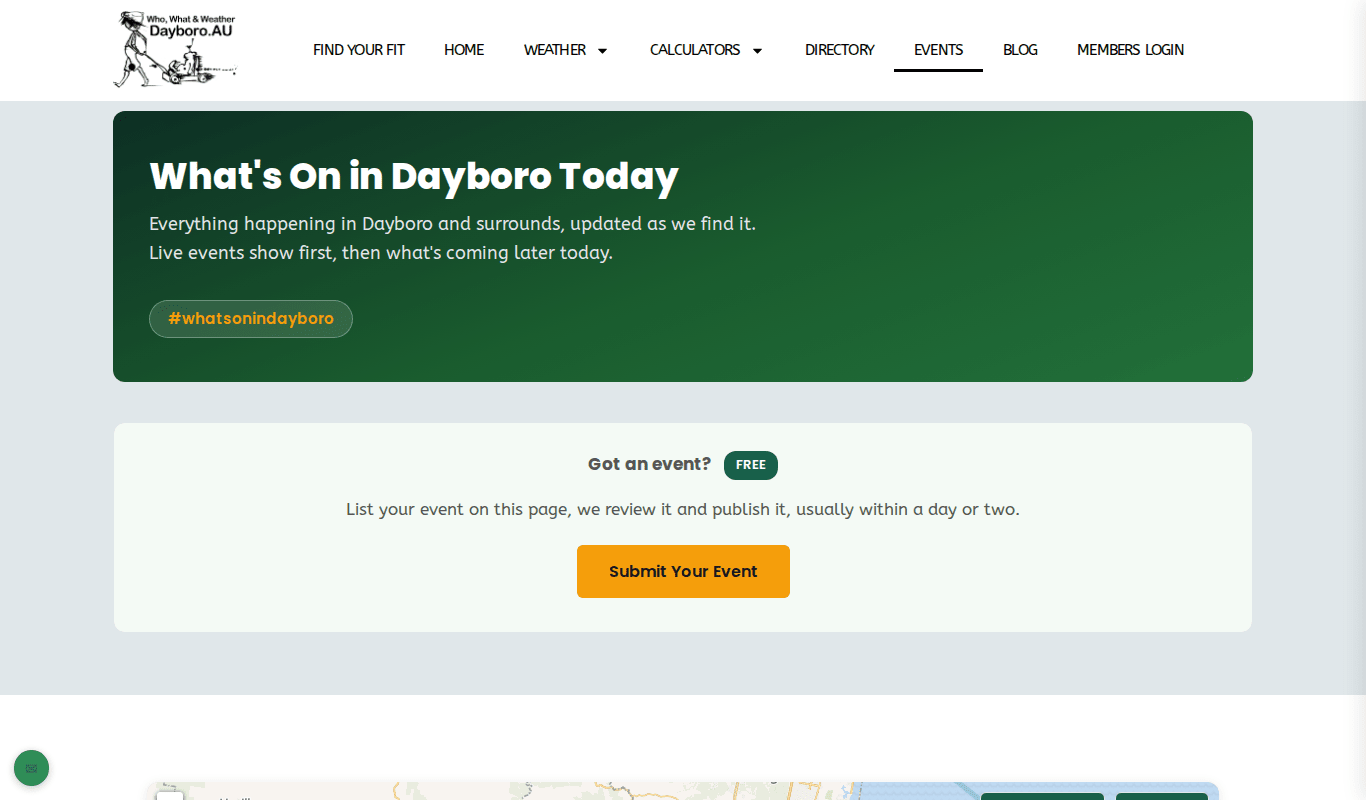
What’s On lists events in Dayboro and the surrounding area: markets, classes, club meals, talks and even bin collection days. Open it from Events in the top menu, or go to /what-is-on-in-dayboro/. Anyone can look, and anyone can send in an event for free.
The map
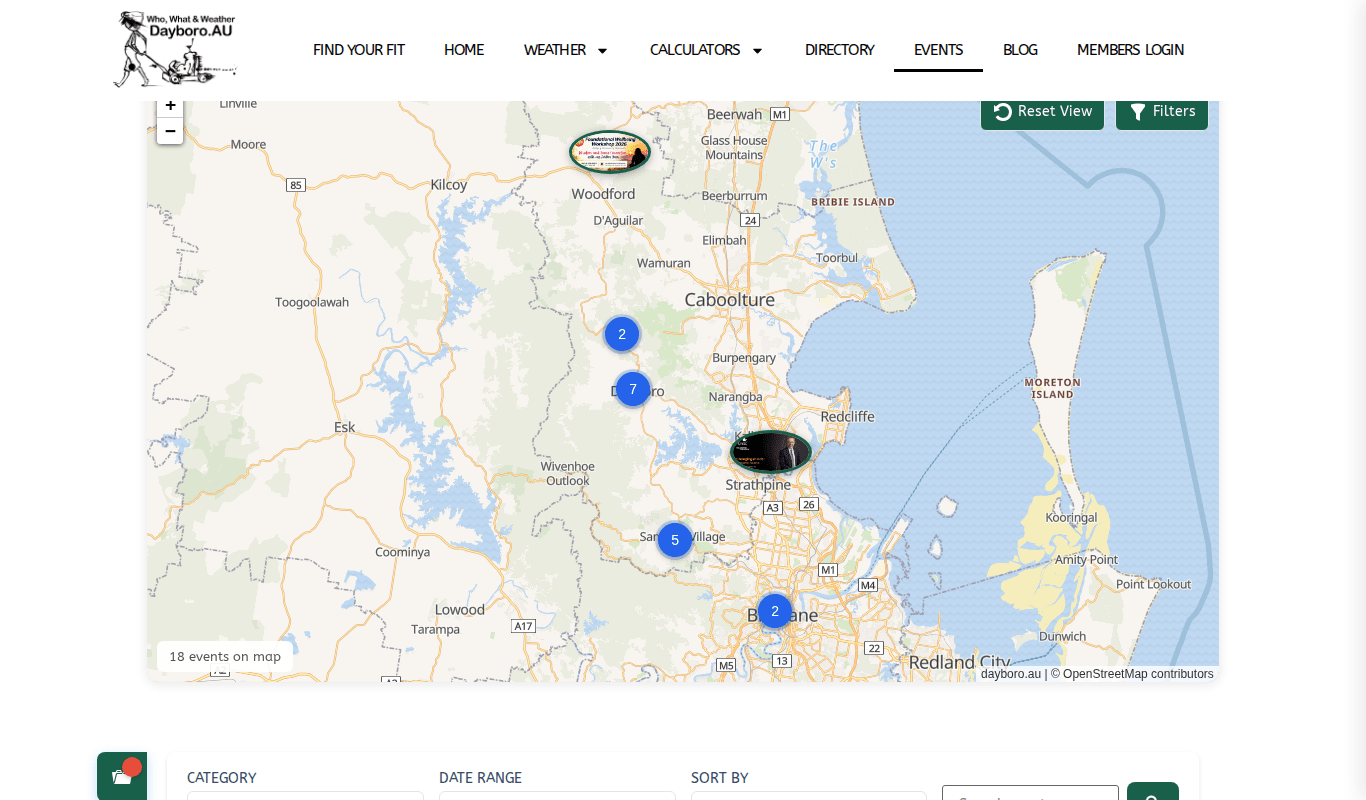
The map shows where events are on. A blue circle with a number means that many events are close together. Zoom in with the + button to see them one by one. The Reset View and Filters buttons sit in the top corner, and the bottom corner tells you how many events the map is showing.
Filters and search
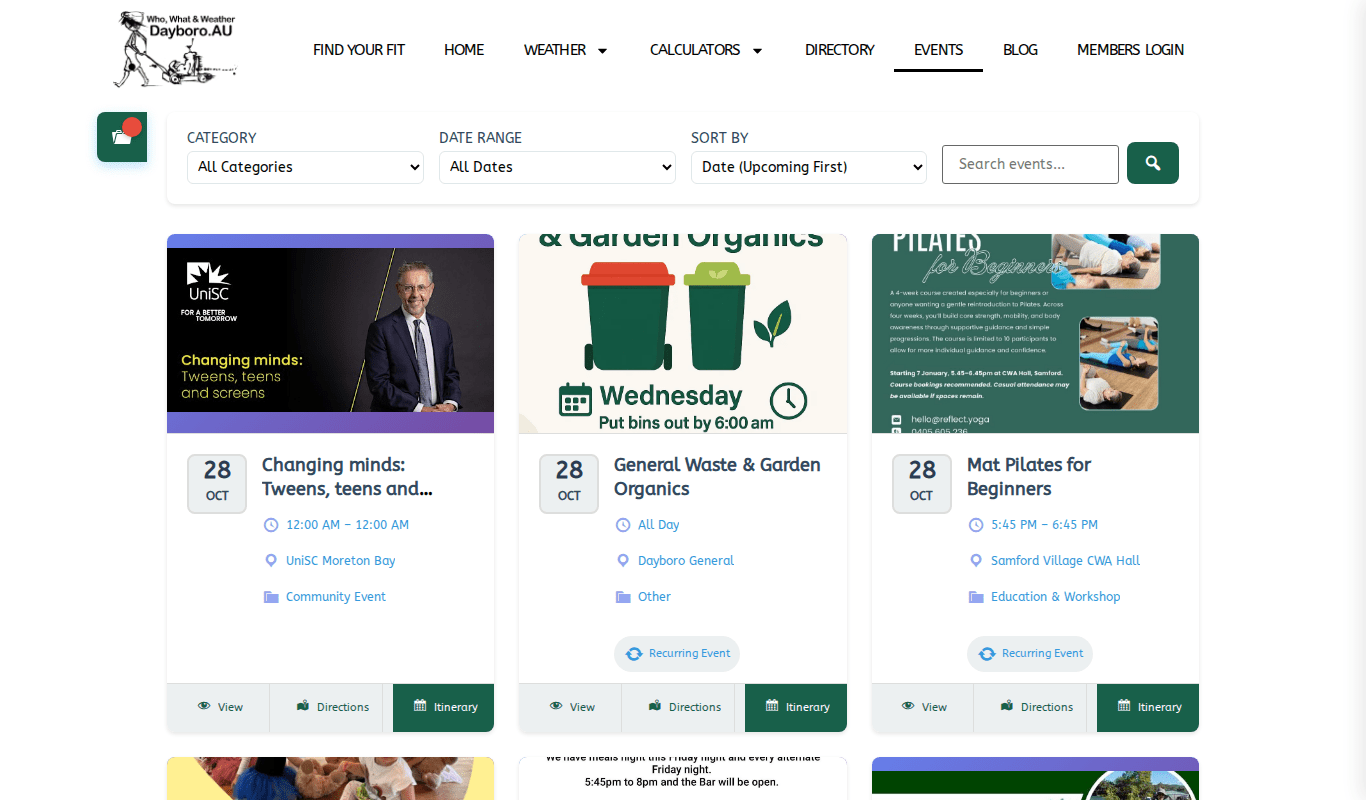
Under the map is a bar with four tools:
- Category, such as Market/Fair, Sports & Recreation, Family & Kids or Music & Entertainment.
- Date range: Today, Tomorrow, This Week, This Month or Next Month.
- Sort by: upcoming first, latest first, title A to Z, or most popular.
- Search: type a word, such as “markets”, and press the search button.
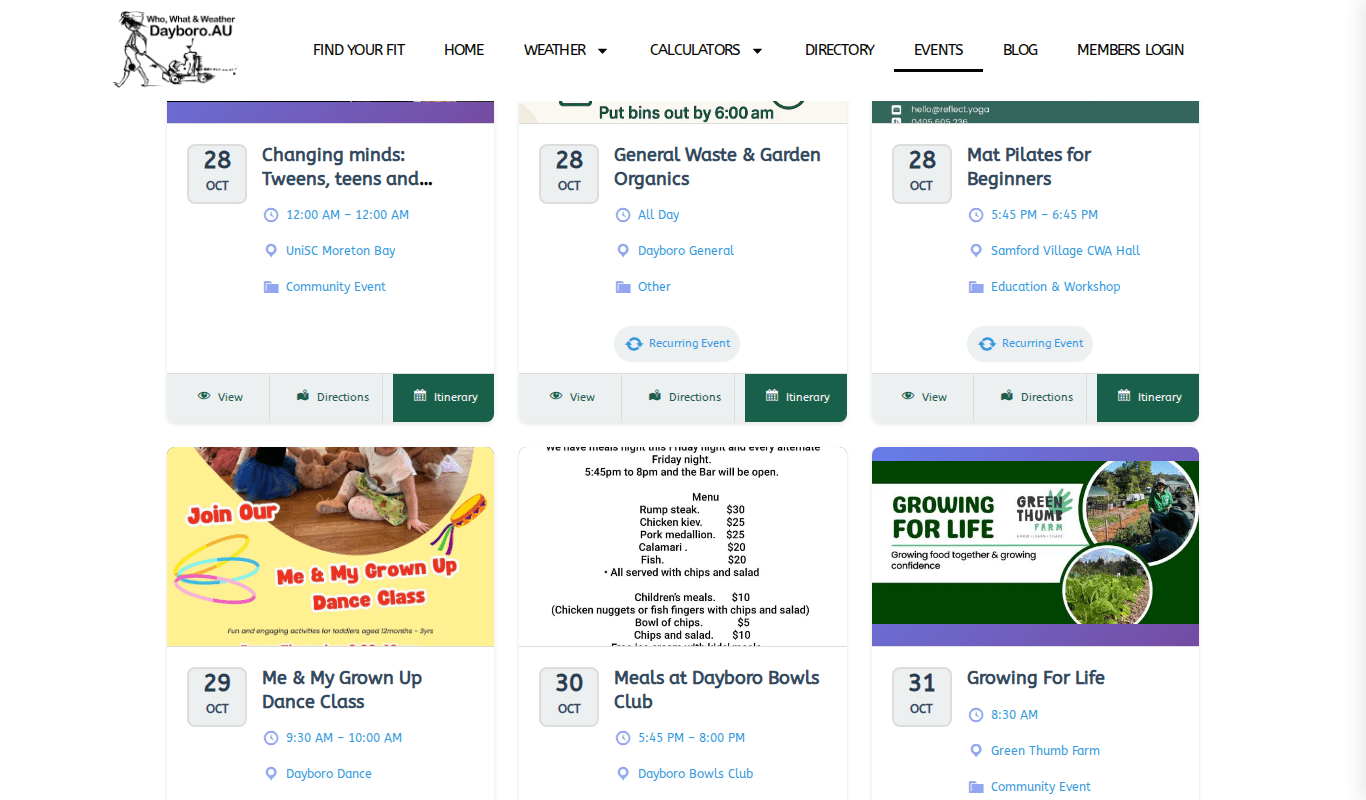
Each event card shows the date, time, venue and category. A Recurring Event tag means it repeats. The three buttons at the bottom are View for the full event page, Directions to find your way there, and Itinerary to add it to your plan for the day. Your plan builds up in the My Itinerary panel.
The event page
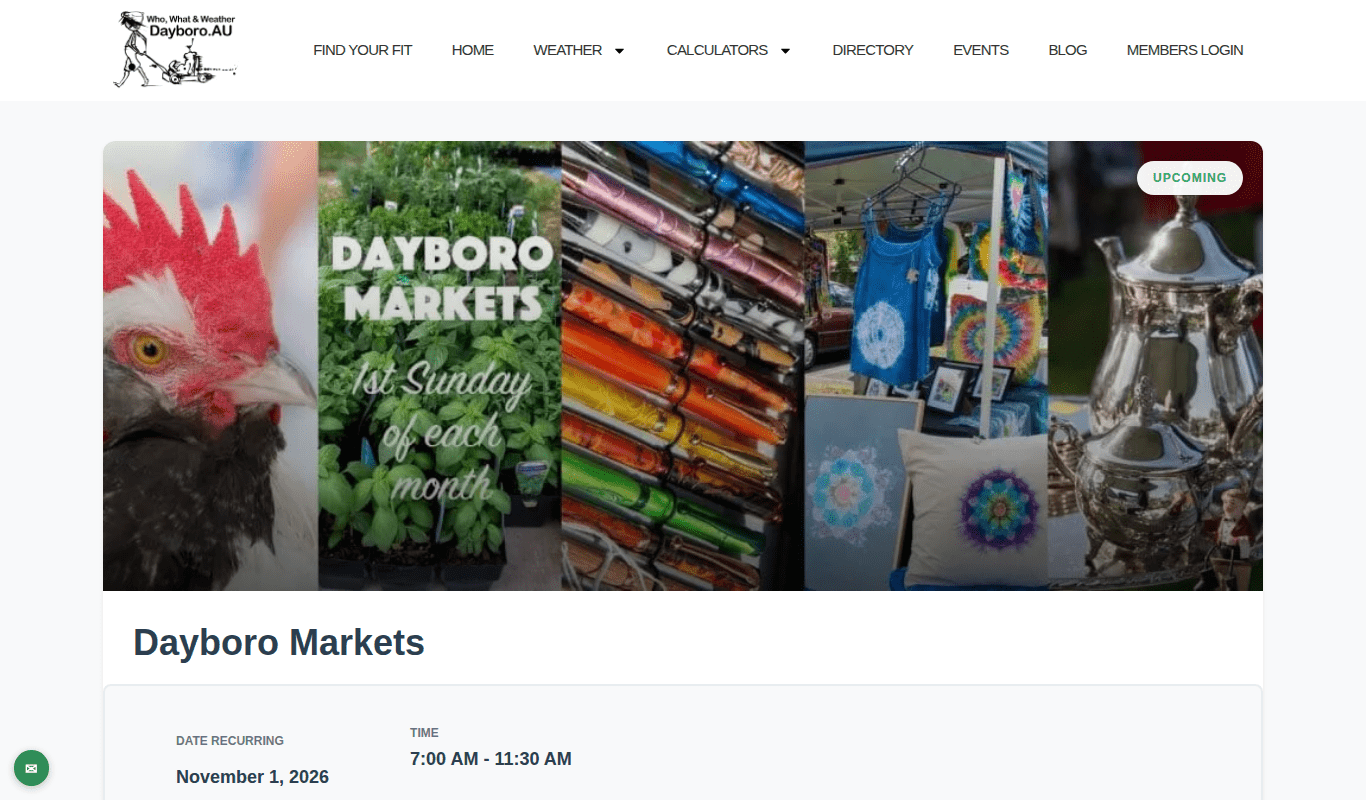
Press View on a card to open the event page. It shows the date and time, the venue, the category and whether it is free. For a repeating event it lists the next dates. You can Save Event, Add to Itinerary, or use Navigate and Get Directions. Further down are the full details, a venue map, the organiser with a link to their business listing, and related events.
Add your own event
Listing an event is free, and you do not need an account. Every event is checked before it appears. The page says this usually takes a day or two.
- Press Submit Your Event at the top of What’s On.
- If your event already has a web page, paste the link into the import box. The form fills in what it can. Check it all.
- Fill in the title, a description and at least one category. You can also pick a business organiser and sponsors from the directory.
- Add the start date, and the times if it has them. Tick “This is a recurring event” if it repeats, or “All day event”.
- Type the venue name and address, then drag the pin on the map to the exact spot. The venue must be within 50 km of Dayboro.
- Add your name and email. Phone, website and cost (Free, Paid or Donation) are optional.
- Add an image if you have one, in JPG, PNG or GIF. Without an account the limit is 2MB. Logged in, it is 5MB.
- Tick that you agree to the terms. Press Preview Event to check it, then Submit Event.
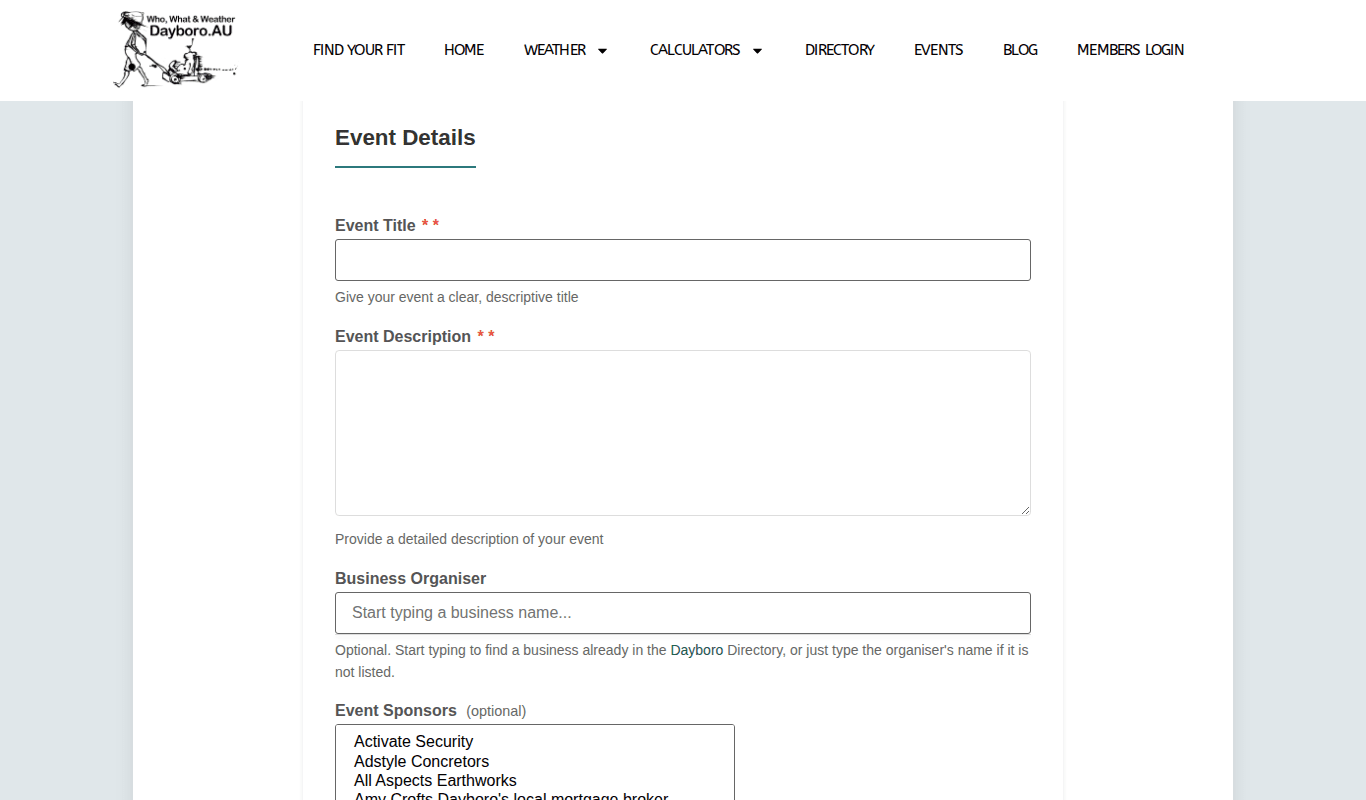
Well, two rules are worth knowing. You can send one event every 6 hours. Events that are not approved are deleted after 7 days.
If you are logged in, the My events page lists the events you have sent in, sorted into Published, Pending, Draft and Cancelled. You can reach it from the Business & events tab of the Members Dashboard.
Back to the guide contents. Next, chapter 13 covers the business directory, advertising and getting help.
The Dayboro team
Get Dayboro weather delivered to your inbox every morning: forecasts, garden tips, and local updates. Subscribe free →