Push notifications are short alerts that pop up on your phone or computer, even when the site is closed. Members can get them for severe weather, storms, community notices and more. Storm warnings can also come by email. This chapter shows how to set both up, and how to turn them off.
Push notifications and storm warnings are for members only. If you are not a member, see the membership page.

Turn on push notifications
Push is set up per device. If you set it up on your computer, do it again on your phone, and the other way round. The steps are the same on an Android phone, an iPhone or a computer:
- On the device you want alerts on, log in and open the Members Dashboard.
- Open the Account tab and scroll to the Push notifications card.
- Switch on Enable.
- Your browser asks if dayboro.au may send notifications. Choose Allow.
- Tick the alerts you want, then press Save.
If you switch on Enable without ticking anything, you get Severe Weather and Crossing closed / reopened alerts to start with.
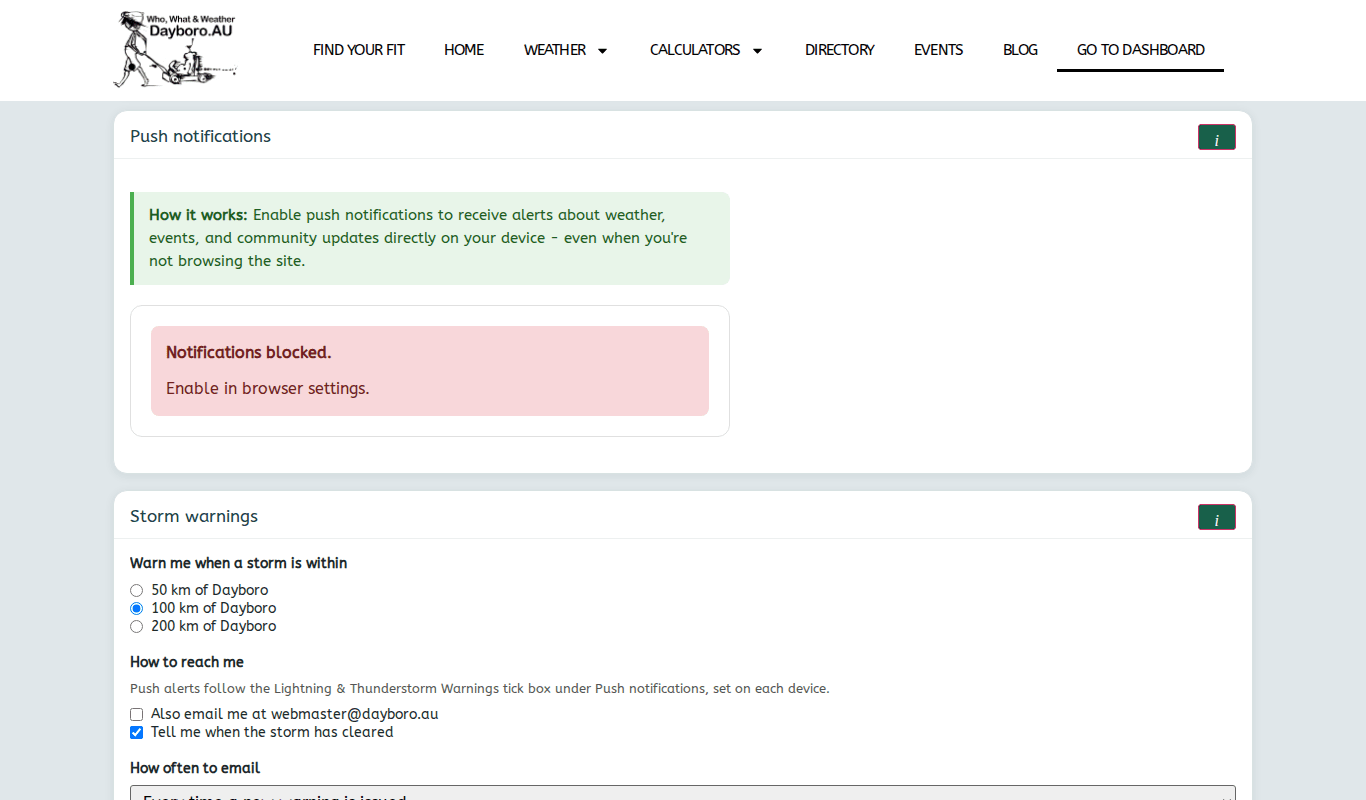
If it says Notifications blocked
This means your browser has been told not to allow notifications from dayboro.au. The card then shows “Notifications blocked. Enable in browser settings.” Open your browser’s site settings for dayboro.au, set notifications to Allow, and reload the dashboard. If the card says “Push notifications are not supported”, that browser cannot receive them. Try another browser on that device.
Which alerts you can get
The alerts come in three groups:
| Group | Alerts |
|---|---|
| Weather Alerts | Severe Weather (storms, cyclones, floods), Lightning & Thunderstorm Warnings, High Temperature (35C+), Low Temperature / Frost (5C-), Heavy Rainfall (25mm+), High Wind (50km/h+), Fire Danger Ratings (High+), Daily Forecast Summary, Crossing closed / reopened |
| Community & Events | What’s On Today, Weekly Events Digest, Urgent Community Notices |
| Garden & Rural | Garden Tips & Alerts, Livestock Alerts (heat stress) |
Pick only the ones you will use, so your phone does not buzz a few times a day for things you do not need.
Set up storm warnings
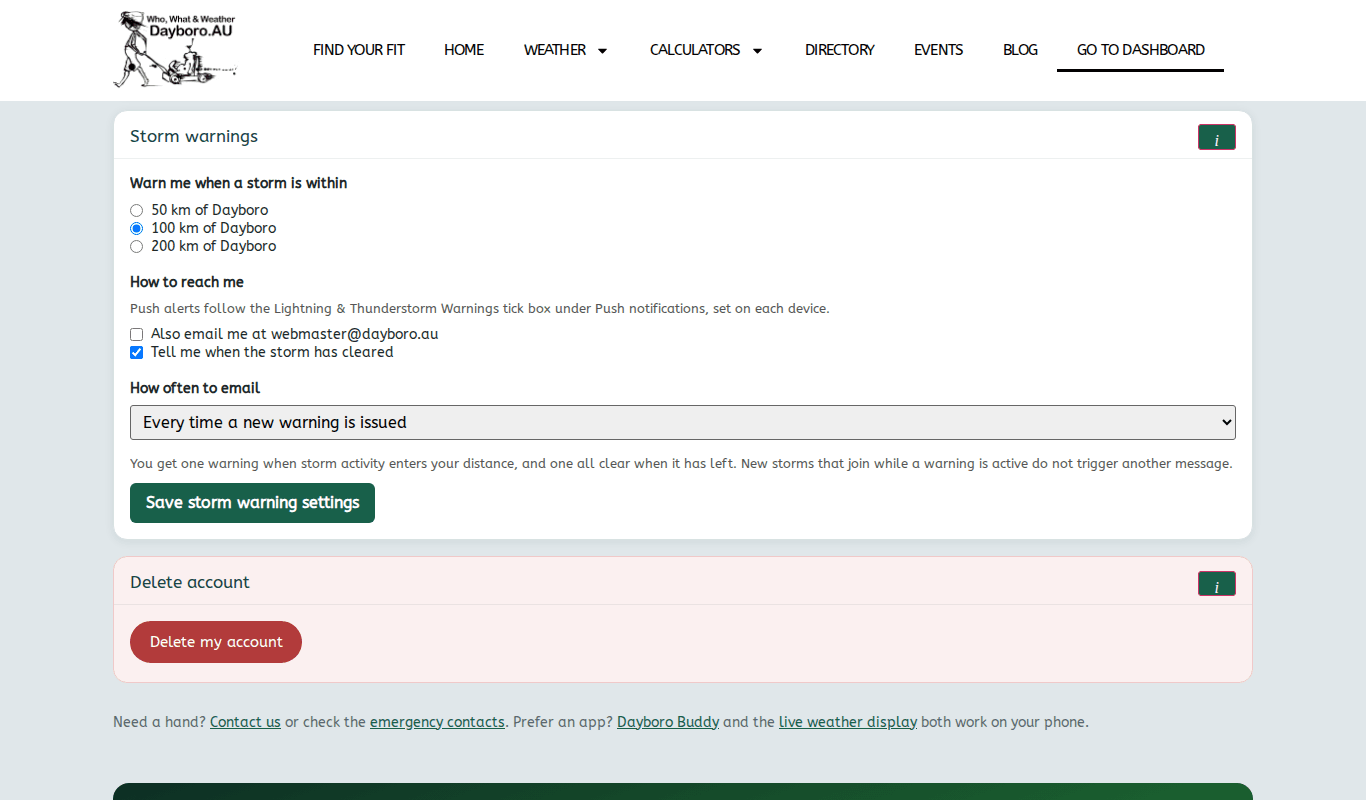
The Storm warnings card sits just below Push notifications on the Account tab. It sends one warning when lightning comes inside your chosen distance, and one all clear when it has gone. New storms that arrive while a warning is active do not send another message.
- Under “Warn me when a storm is within”, pick 50, 100 or 200 km of Dayboro. 100 km is the default.
- For push alerts, make sure Lightning & Thunderstorm Warnings is ticked in the Push notifications card on each device.
- For email too, tick “Also email me at” your address. This is off by default.
- Leave “Tell me when the storm has cleared” ticked if you want the all clear.
- Under “How often to email”, choose every new warning, every 3 hours, every 6 hours or once a day.
- Press Save storm warning settings.
Turn alerts off
- One type of push alert: untick it in the Push notifications card and press Save.
- All push on this device: switch off Enable. You see “Notifications disabled.” Do this on each device you want to stop.
- Storm push alerts: untick Lightning & Thunderstorm Warnings and press Save.
- Storm emails: untick “Also email me at” and press Save storm warning settings.
Back to the guide contents. Next, chapter 12 shows how to find and add local events in What’s On.
The Dayboro team
Get Dayboro weather delivered to your inbox every morning: forecasts, garden tips, and local updates. Subscribe free →