

Email is the simplest way to get our storm warnings. There is nothing to install, it works on every phone and computer, and if you are a member it is already switched on. When lightning comes within 100 km of Dayboro, you get one email. When there has been no lightning inside that distance for 30 minutes, you get one all clear.
This guide shows you how to change the distance, how often we email, and how to turn it off if you would rather not. It takes about a minute. Paying members can also get the warnings by text message, see Storm warnings by text further down.
What you get, out of the box
The 100 km distance gives the earliest heads up, but on a busy storm day it can fire more than you want. Many people are happier on 50 km. Step 3 shows how to change it.
Step 1: Log in and open your Members Dashboard
- Go to dayboro.au/come-in and log in.
- Click Go to Dashboard at the top right. On a phone, open the menu first.

Step 2: Open the Account tab and find Storm warnings
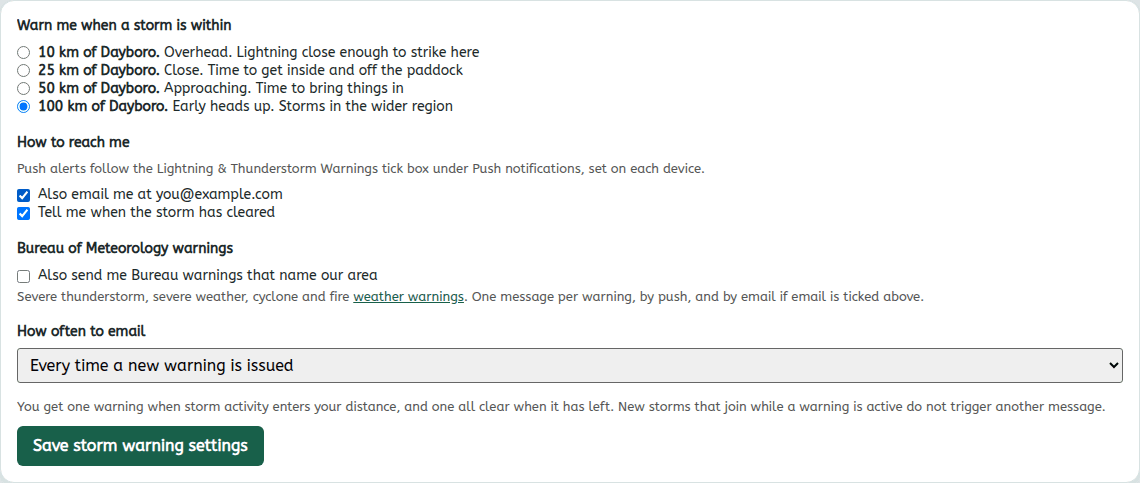
Click the Account tab. Storm warning settings live here, not on the Emails tab, because the same settings also drive push notifications. Scroll down past Push notifications to the card called Storm warnings.

Step 3: Pick your distance
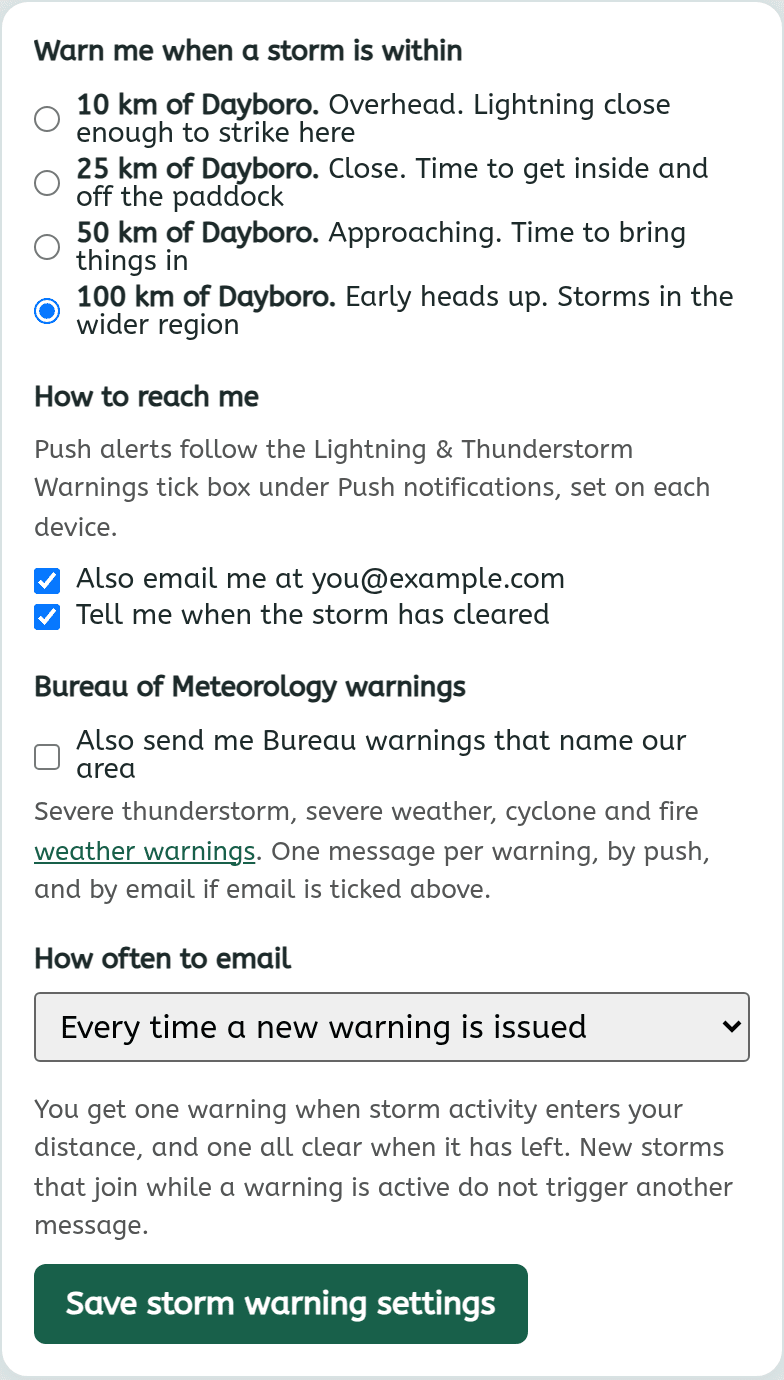
Under Warn me when a storm is within, choose one of the four distances.
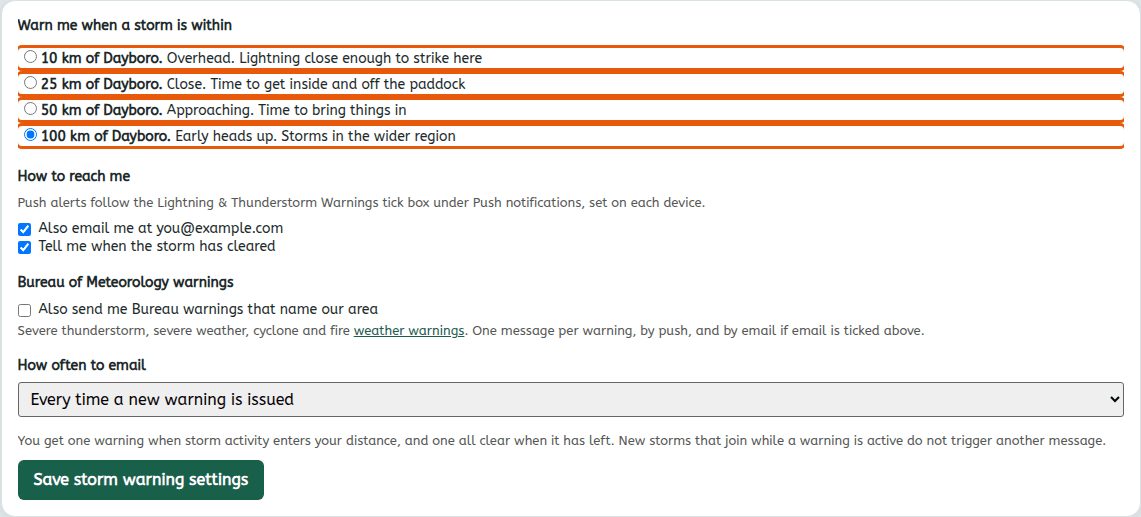
Overhead
Lightning close enough to strike here.
Close
Time to get inside and off the paddock.
Approaching
Time to bring things in.
Early heads up
Storms in the wider region.
You only get the email for your own distance. Pick 25 km and a storm sitting 40 km away sends you nothing, which is what you asked for. This is the same distance setting as in the Push notifications card, so changing it in one place changes both.
Step 4: Check the email boxes
Under How to reach me are two tick boxes:
- Also email me at (your address). Ticked means you get storm warning emails. Untick it to stop them.
- Tell me when the storm has cleared. Ticked means you also get one all clear email once lightning has left your distance. An all clear only comes after a warning you were actually sent, so you never get an all clear out of the blue.
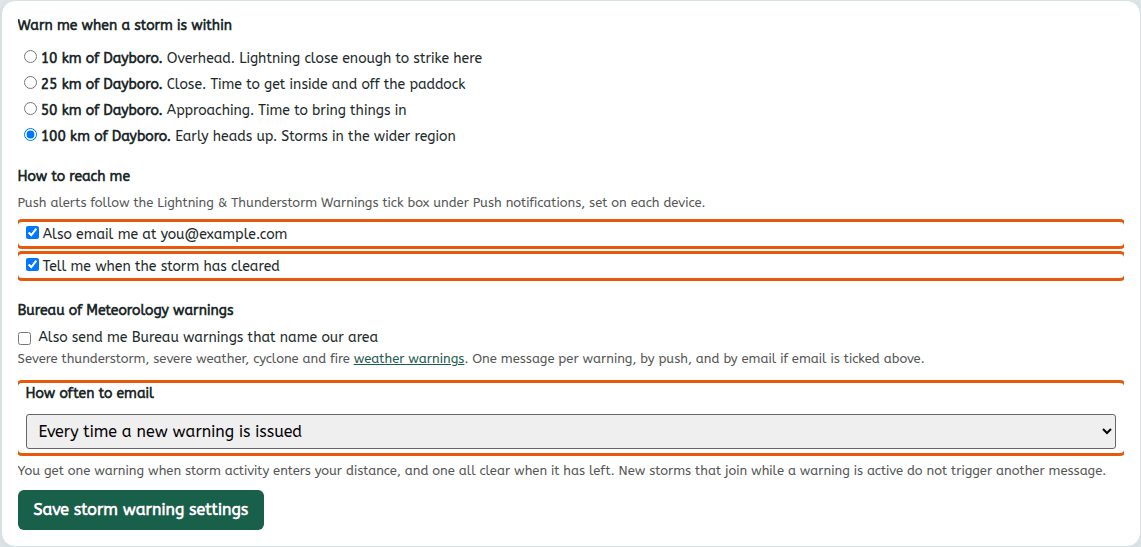
The address shown is the email on your dayboro.au account. Storm emails always go to that address.
Step 5: Choose how often we email
Open the How often to email list and pick one:
- Every time a new warning is issued. Each time lightning comes back inside your distance after an all clear, you get a new warning.
- At most one warning every 3 hours.
- At most one warning every 6 hours.
- At most one warning a day. Good for 100 km on a stormy week.
This limit only applies to warnings. A storm that keeps coming and going on a summer afternoon will not flood your inbox. Even on “every time”, new storms that join while a warning is already on do not send another email.
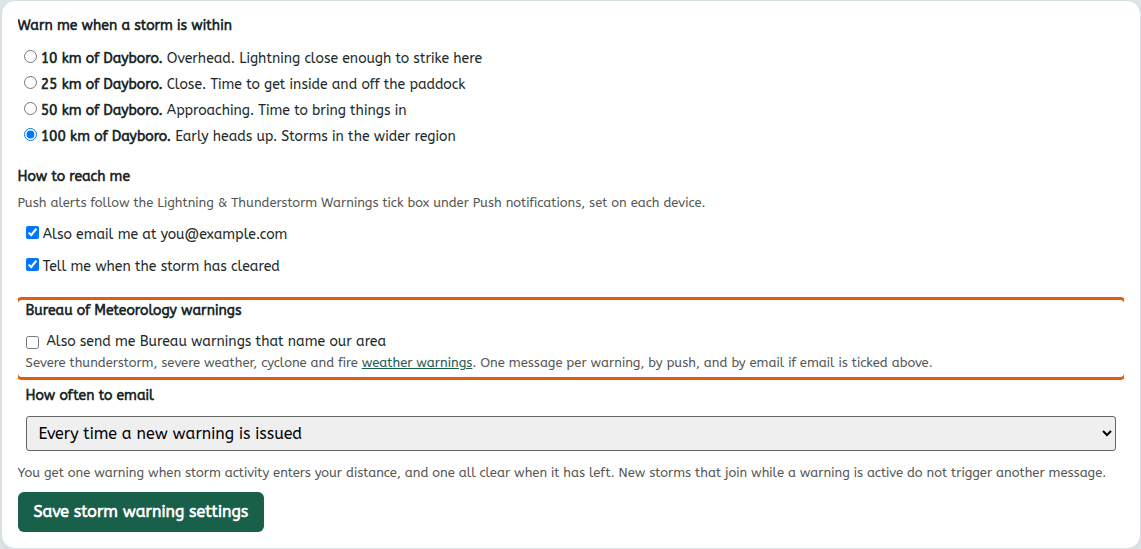
Step 6 (optional): Bureau of Meteorology warnings
Tick Also send me Bureau warnings that name our area if you want official warnings too: severe thunderstorm, severe weather, cyclone and fire weather warnings that mention our area. You get one message per warning, by push, and by email if the email box in Step 4 is ticked.
Step 7: Click Save storm warning settings
Nothing on this card changes until you click the green Save storm warning settings button at the bottom.
On a phone the card looks like this, with the same boxes in the same order:
What the emails look like
Storm emails come from Webmaster <webmaster@dayboro.au>. Add that address to your contacts so the first one does not end up in junk.
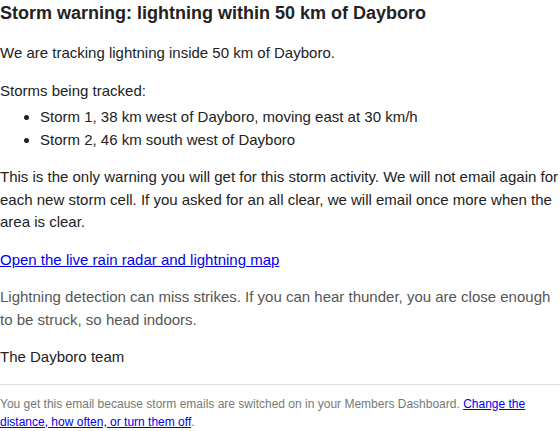
The warning has the subject Storm warning: lightning within 50 km of Dayboro (with your distance). It lists each storm we are tracking, how far away it is, which direction, and which way it is moving when we can tell. There is a link to the live rain radar and lightning map.
The all clear has the subject Storm clear: no lightning within 50 km of Dayboro.
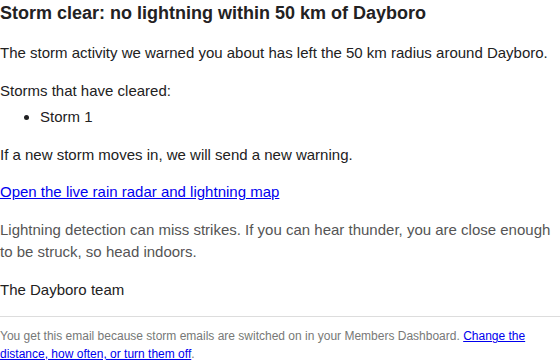
At the bottom of every storm email is a link, Change the distance, how often, or turn them off. It takes you straight to the Storm warnings card.
Turn storm emails off
- Click the link at the bottom of any storm email, or go to Members Dashboard, Account, Storm warnings.
- Untick Also email me at (your address).
- Click Save storm warning settings.
It stays off until you tick it again. Turning storm email off does not touch your push notifications or your other emails.
Storm warnings by text (SMS)
Paying members can also get safety warnings as a plain text message. A text still gets through when the power is out, the home internet is down, or the phone only has a weak signal. It is the backup for the times email and push notifications cannot reach you.
Texts are off until you add your mobile number. You can ask for any of these:
- Storm warnings at my storm distance. Uses the same distance you picked in Step 3.
- The all clear after a storm text. Off to start with, because it uses up a text from your allowance.
- Bureau warnings that name our area, including fire weather.
- Creek crossing closed or reopened.
Add your number
- On the Account tab, scroll to the bottom of the Storm warnings card. The last part is called SMS warnings.
- Type your Australian mobile number in the Your mobile number box, in the 04xx xxx xxx form.
- Click Send me a code. Within a minute you get a text with a 6 digit code. The code works for 10 minutes.
- Type the code into the Code from the text box and click Confirm my number.
- The card says Your number is confirmed. SMS warnings are on.

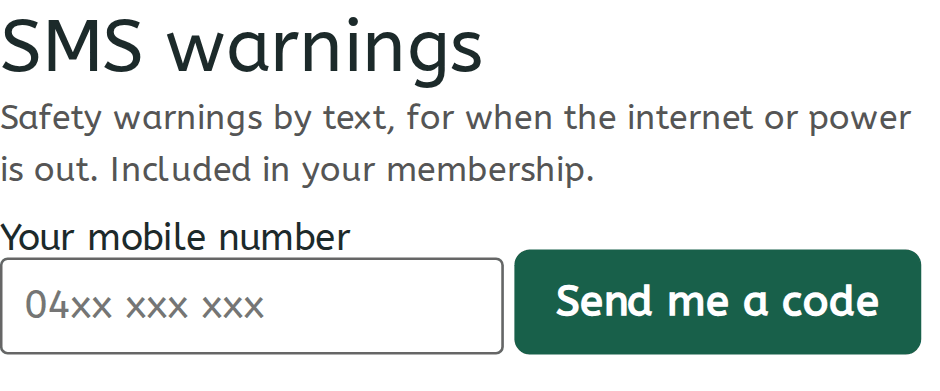
No code? Check the number, then click Send me a code again. You can ask for 3 codes a day.
Choose what you get
Once your number is confirmed, the same spot shows your settings:
- Under Text me about, tick the warnings you want. Storm warnings, Bureau warnings and creek crossings are ticked to start with.
- Under At most, pick how many texts a day you are happy to get: 1, 2, 3 or 5. It starts at 3.
- Tick No texts between 10pm and 6am if you do not want to be woken. Leave it unticked if you want a text for a storm or a closed crossing at night.
- Click Save SMS settings.
Your monthly text allowance
Your membership includes 15 texts a month. Your month starts on the day of the month you joined, so if you joined on the 20th, your texts start again on the 20th of each month. The card shows how many you have used and when they start again, for example This month: 3 of your 15 texts used, 12 texts left. Your texts start again on 20 November. The code text counts as one.
In your free week. While you are on the 7 day free trial you get 1 warning text, so you can see how it works. Once your first payment goes through, the full 15 texts a month start. The card on your dashboard tells you when you are in the free week. Your storm emails and push notifications work as normal all week.
When all 15 are used, the texts stop until your next month starts, on the date the card shows. Your storm emails and push notifications carry on as normal. If you keep running out, tick fewer warnings, pick a smaller storm distance, or lower the number of texts a day.
What a text looks like
Texts are short and plain, for example:
Dayboro storm warning: lightning within 50 km. Nearest 38 km west, moving east. https://dayboro.au/warn Stop texts: https://dayboro.au/sms
Tap the link https://dayboro.au/warn to open the current warnings page. The second link takes you straight to your SMS settings. Save the number the texts come from in your contacts as “Dayboro warnings”, so you know who it is straight away.
Stop the texts
- On the card, click Remove my number. The card says Your number is removed. You will get no more texts.
- Or reply STOP to any of our texts. Within the hour, the site switches your texts off as well.
- To stop only some kinds, untick them and click Save SMS settings.
Changed your mind later? Add your number again and confirm a new code.
Your other emails live on the Emails tab
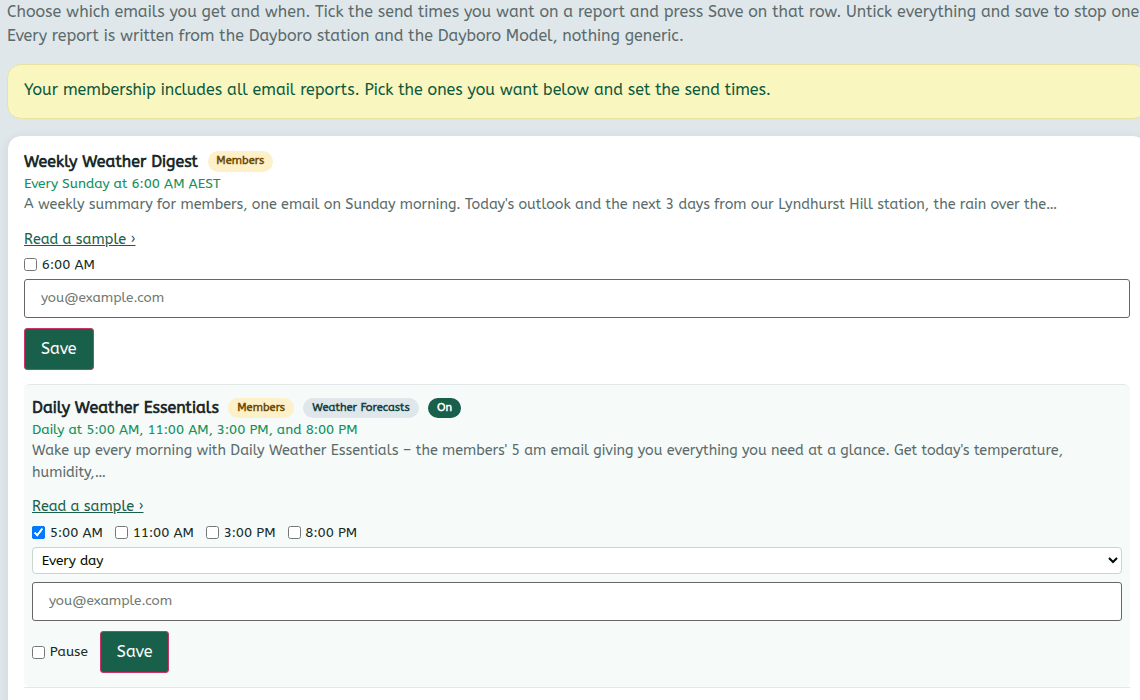
The Emails tab is where you pick your regular reports, such as Dayboro Today and Daily Weather Essentials, and set their send times. Tick the times you want on a report and press Save on that row. Storm warnings are set on the Account tab as above.
Troubleshooting
- No storm emails at all. Check the junk or spam folder and look for webmaster@dayboro.au. Mark it as not spam. Then check the email box is ticked on the Storm warnings card.
- No email even though there was a storm. Check your distance. The storm may have stayed outside it. Also check “How often”, a limit of one a day skips later warnings that day.
- No all clear. Make sure “Tell me when the storm has cleared” is ticked. An all clear only comes after a warning you were sent.
- Too many emails. Move to 50 km or 25 km, or set “How often” to every 6 hours or once a day.
- No SMS warnings part on the card. Texts are for paying members. A complimentary or lapsed membership does not show it.
- The texts stopped. Check the card. If it says all 15 texts are used, they start again on the date it shows. If it says you stopped them by replying STOP, add your number again.
- The card says storm warnings are for members only. Your membership has lapsed or you are logged into a different account. See the membership page.
Want alerts that pop up faster than email? See User guide 14: Set up push notifications. For alerts that keep working when the power and phone towers are down, see User guide 16: Weather alerts on MeshCore.
Lightning detection can miss strikes. If you can hear thunder, you are close enough to be struck, so head inside whatever your inbox says.
Get Dayboro weather delivered to your inbox every morning: forecasts, garden tips, and local updates. Subscribe free →